
first_image_ratio = 100
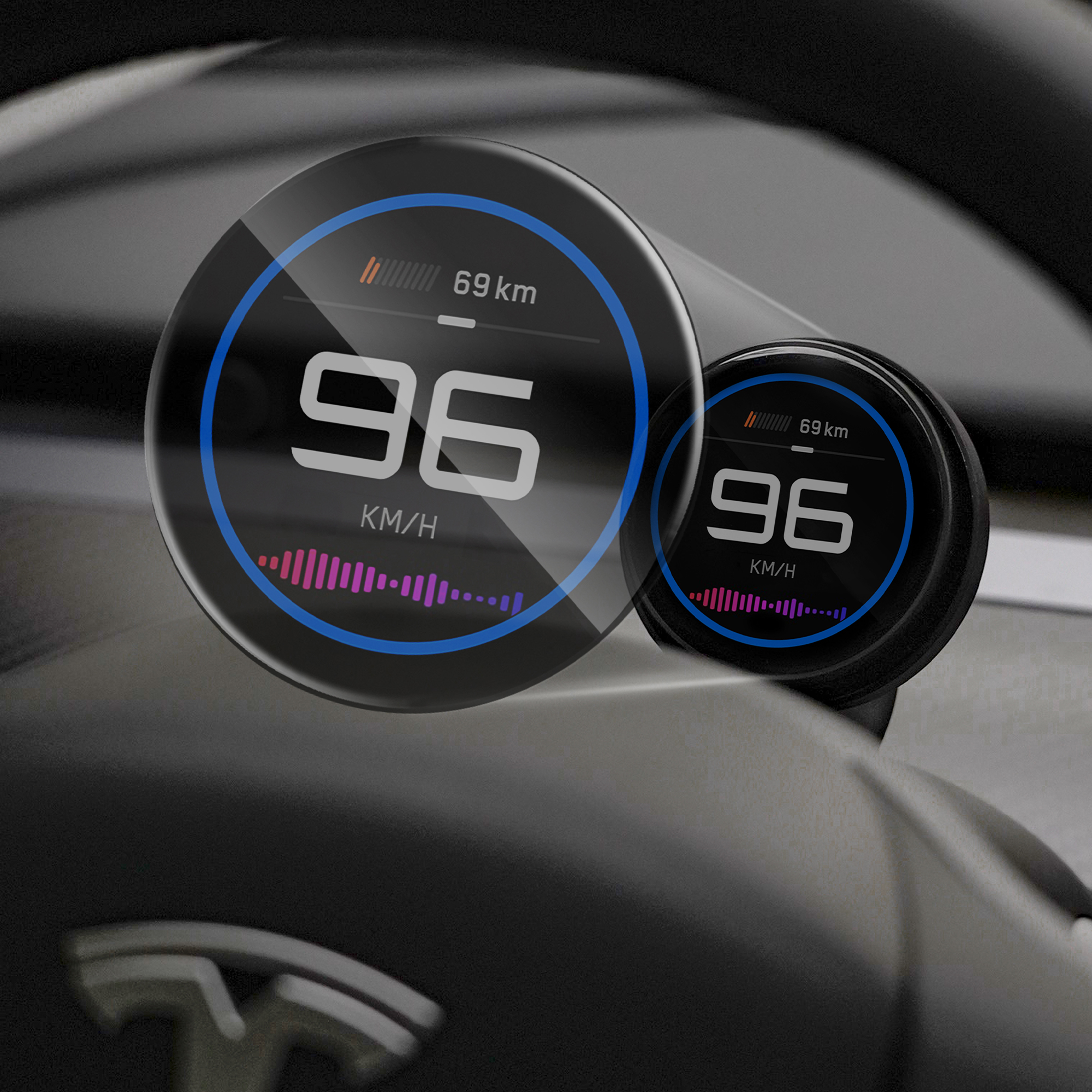
Easy Installation, No repair shop needed.
HUD Pro Installation & User Guide
Step 1: What's Included in the Box
Step 2: Data Transmitter Installation (5–10 Minutes)
Step 3: HUD Pro Holder Installation (3–5 Minutes)
Step 4: Display & Data Transmitter OTA Update (3–5 Minutes)
Step 5: Customize Your HUD Pro Settings (3–5 Minutes)
Step 2: Data Transmitter Installation (5–10 Minutes)
Step 3: HUD Pro Holder Installation (3–5 Minutes)
Step 4: Display & Data Transmitter OTA Update (3–5 Minutes)
Step 5: Customize Your HUD Pro Settings (3–5 Minutes)
Step 1: What’s in the Box

HUD Pro Sceen
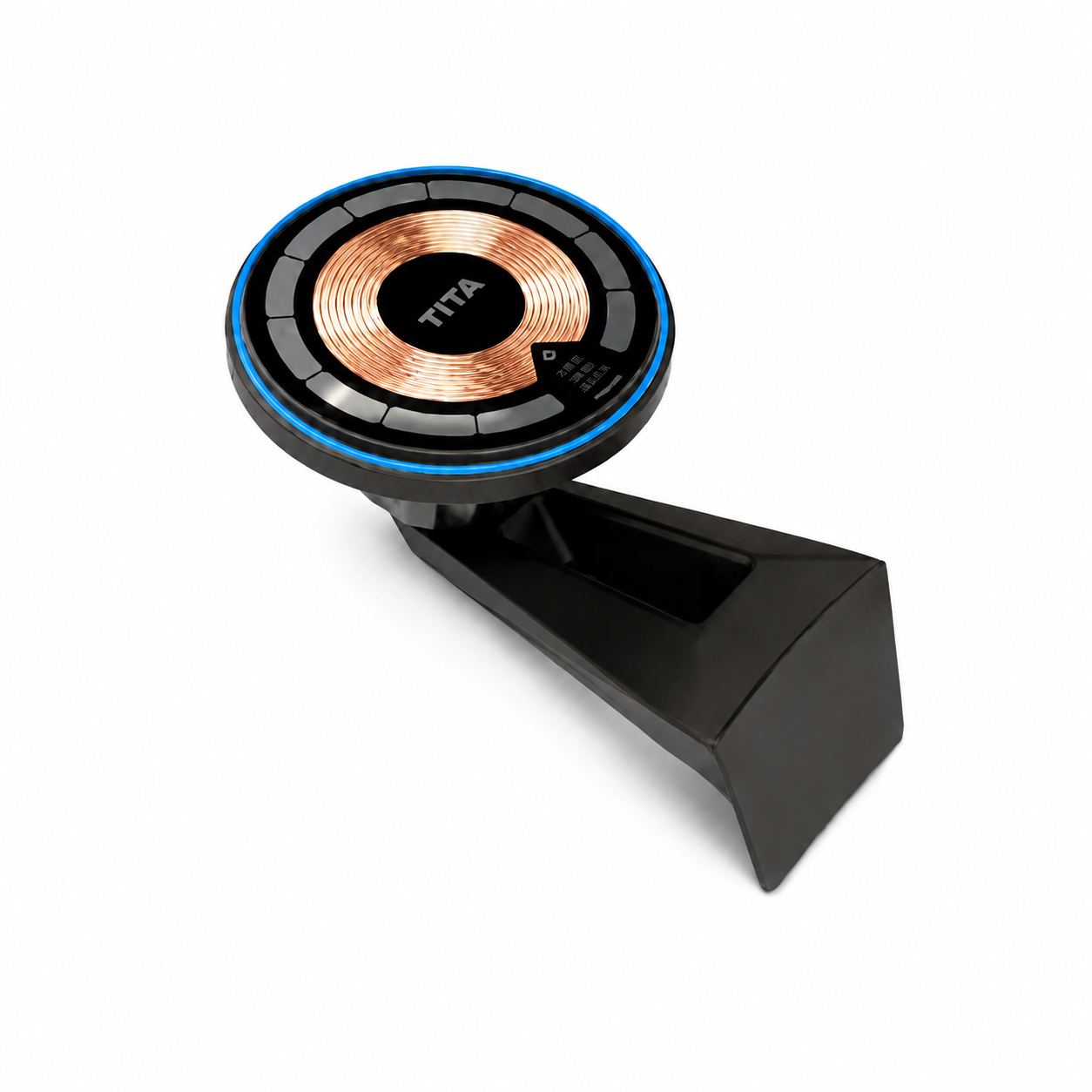
Phone Holder

Data Transmitter

OBD Adapter
(Sold Separately)
HUD Pro Sceen
Phone Holder
Data Transmitter
OBD Adapter
(Sold Separately)
Step 2-1: Data Transmitter Installation Full Video
Step 2-2: Model 3 & Model Y Data Transmitter Installation Steps
This guide applies only to Model 3 (2022–2024) and Model Y (2022–2025). For newer models, refer to Steps 2–3 for installation.


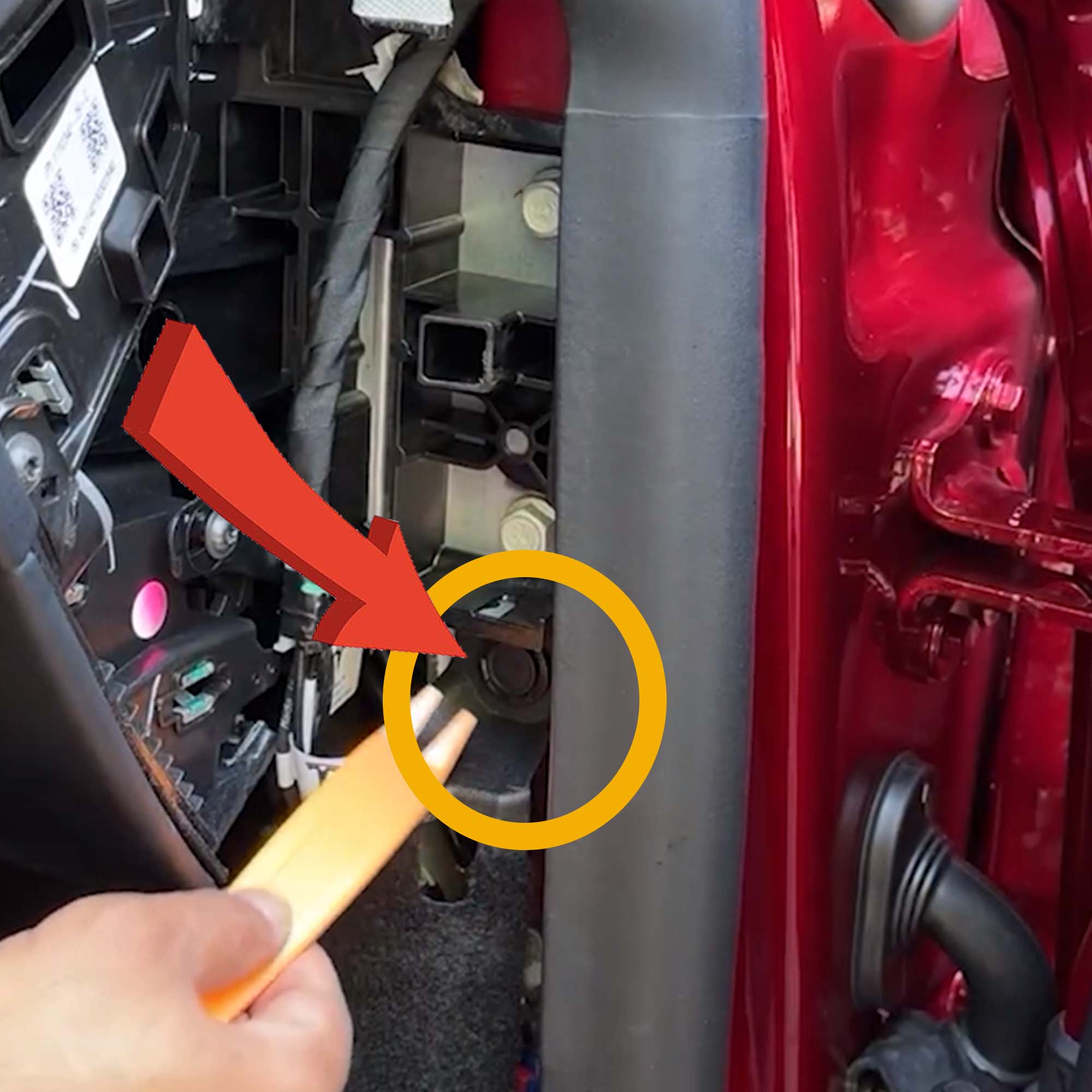
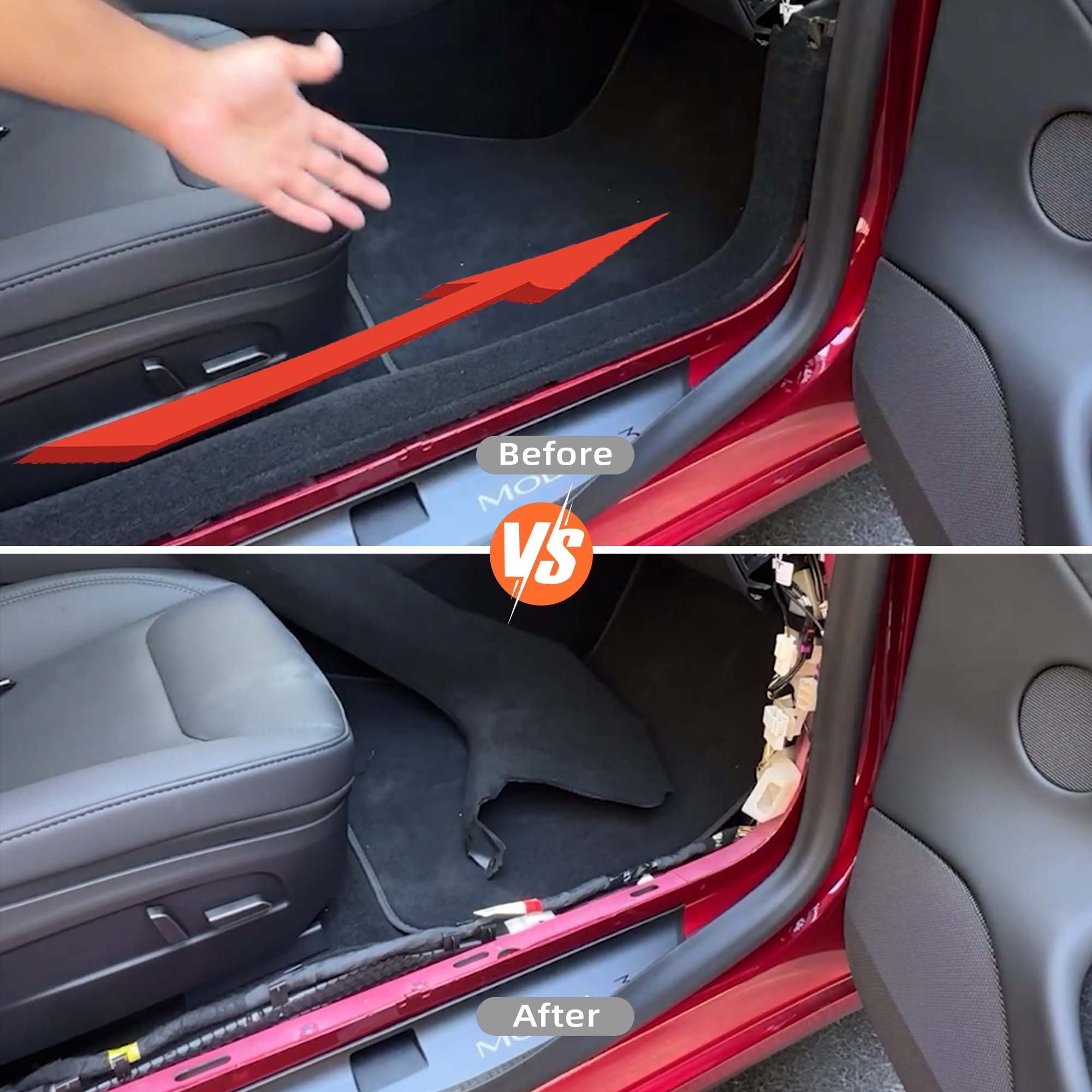
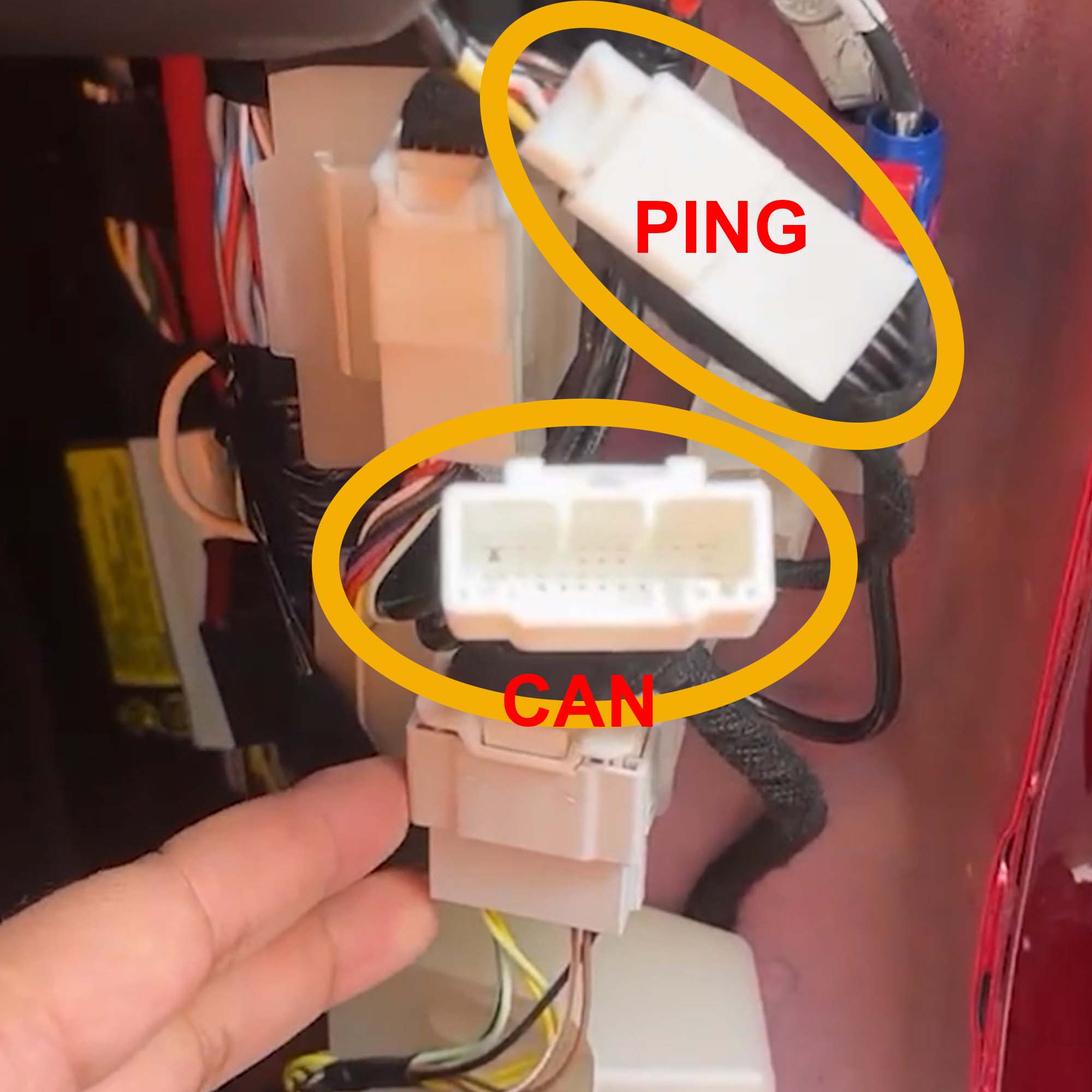
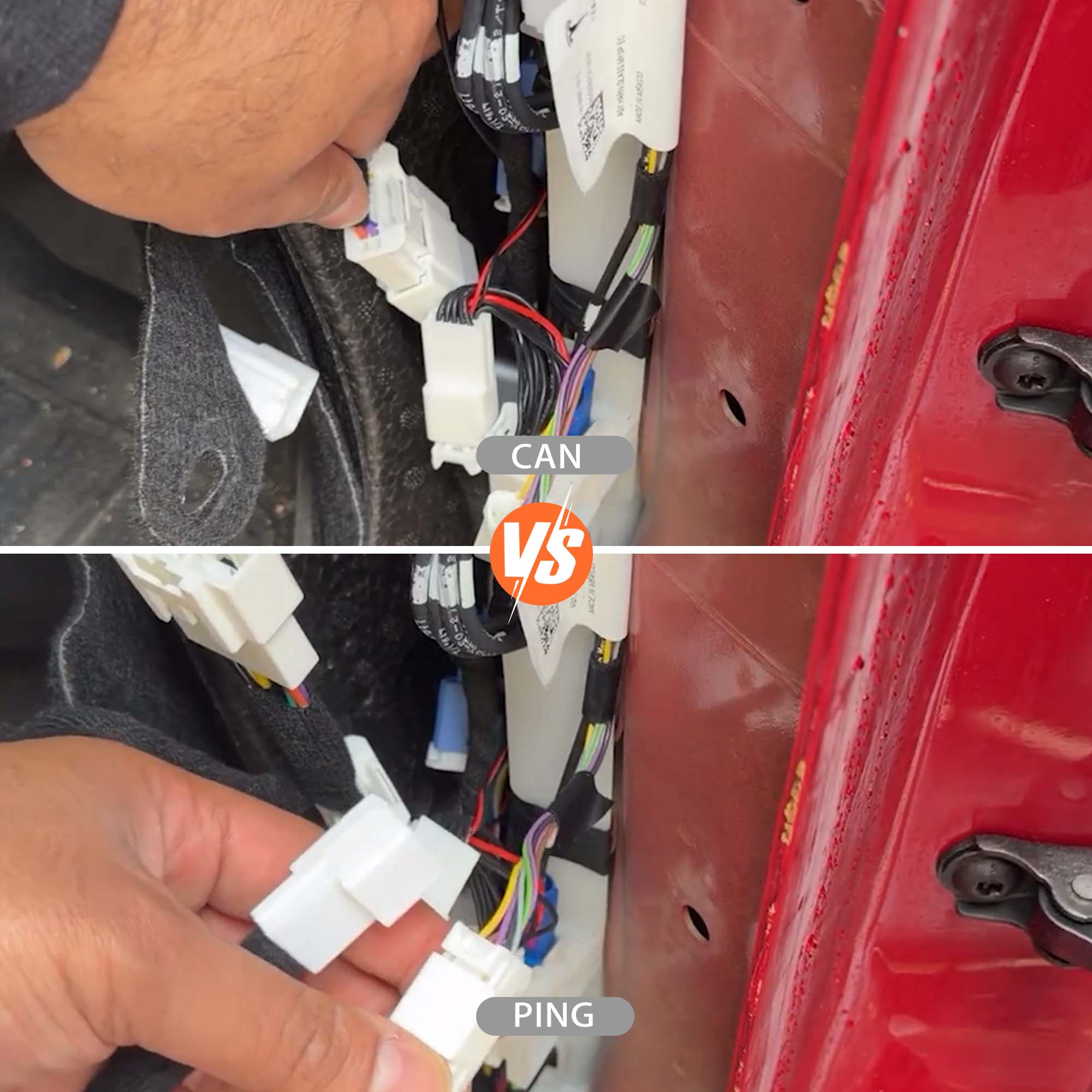
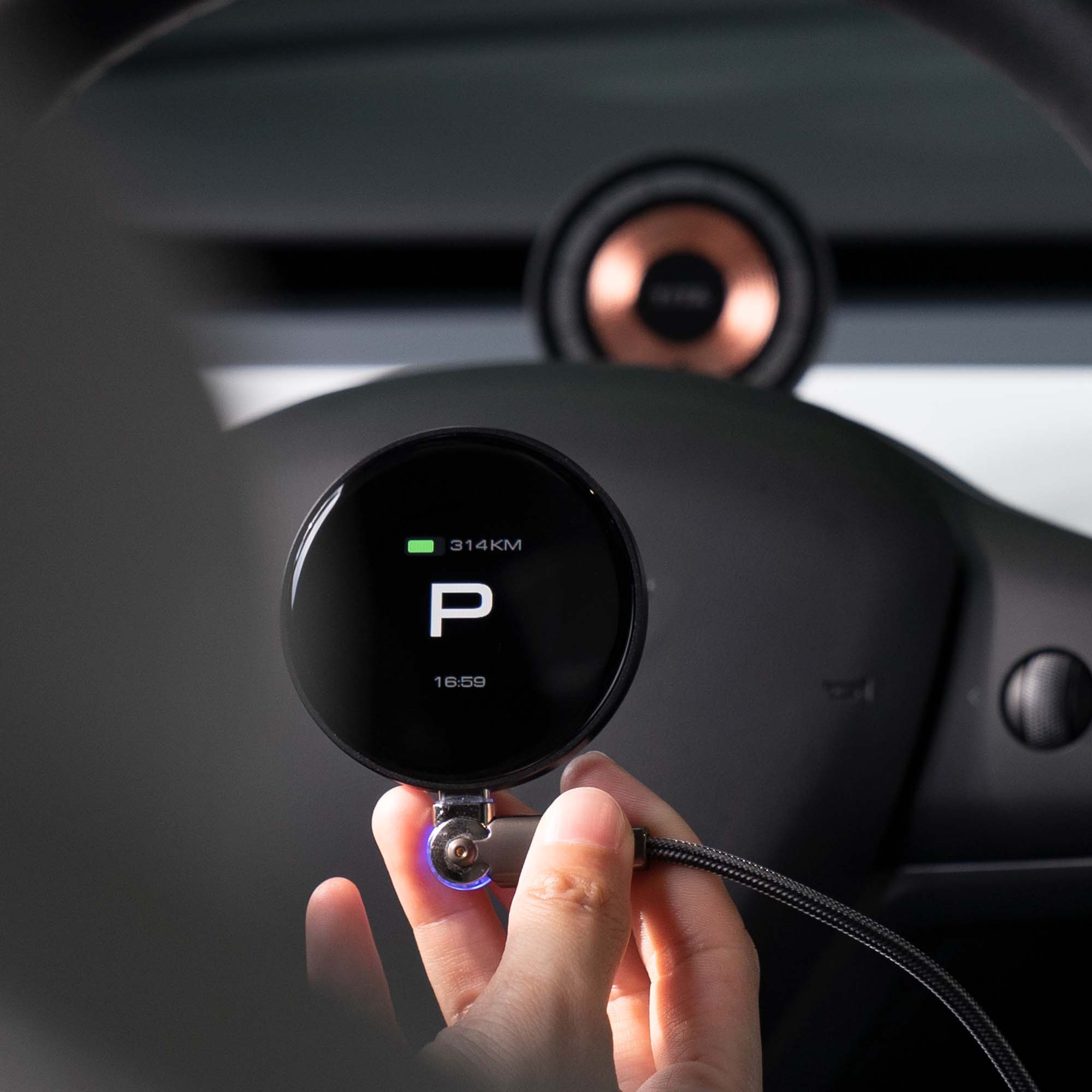

Reassemble the vehicle in reverse order. Note: Pinch the plastic fastener by hand to make it easier to reinsert.
Reassemble the vehicle in reverse order. Note: Pinch the plastic fastener by hand to make it easier to reinsert.
1
/
8
Step 2-3: Highland & Juniper Data Transmitter Installation Steps
This guide applies only to Model 3 Highland (2024+) and Model Y Juniper (2025+). For other models, refer to Steps 2–2 for installation.
Reassemble the vehicle in reverse order. Note: Pinch the plastic fastener by hand to make it easier to reinsert.
Reassemble the vehicle in reverse order. Note: Pinch the plastic fastener by hand to make it easier to reinsert.
1
/
8
Special Instructions for Model Y Juniper
Model Y Juniper vehicles may use different data systems depending on the production location and date. To ensure full TITA functionality, connect the TITA transmitter according to your vehicle’s specific configuration.
|
|
|
|
|---|---|---|
|
Factory
|

25 Harness
|

26 Harness
|
|
Shanghai, China
|
Before Mar 25, 2026
|
After Mar 25, 2026
|
|
Fremont, USA
|
Before Dec 9, 2025
|
After Dec 9, 2025
|
|
Austin, USA
|
Before Dec 4, 2025
|
After Dec 4, 2025
|
|
Berlin, Germany
|
Juniper: Before Apr 1, 2026
|
Juniper: After Apr 1, 2026
|
|
Berlin, Germany
|
Standard: Before Jun 1, 2026
|
Standard: After Jun 1, 2026
|
Step 3: Phone Holder Installation

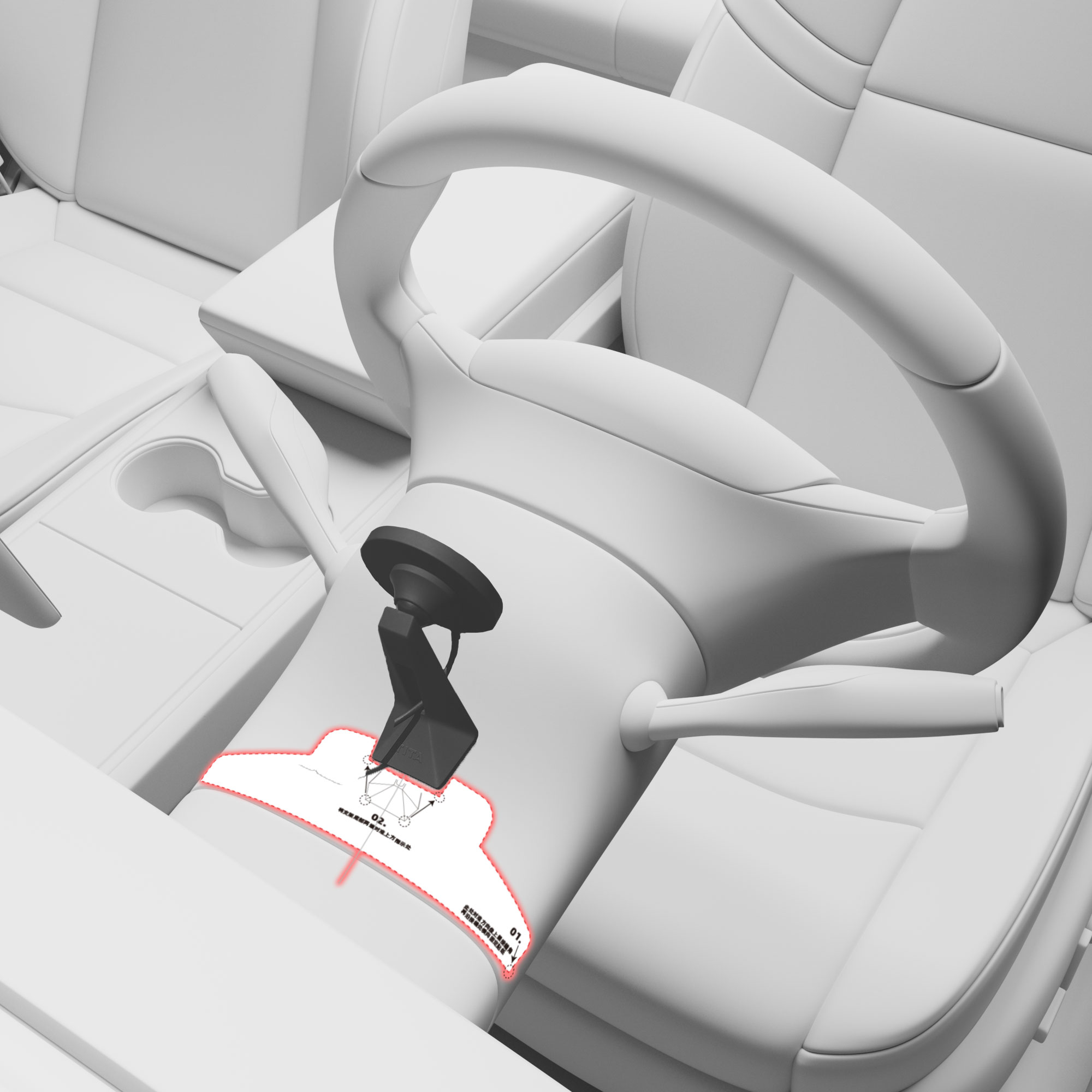


1
/
4
first_image_ratio = 100
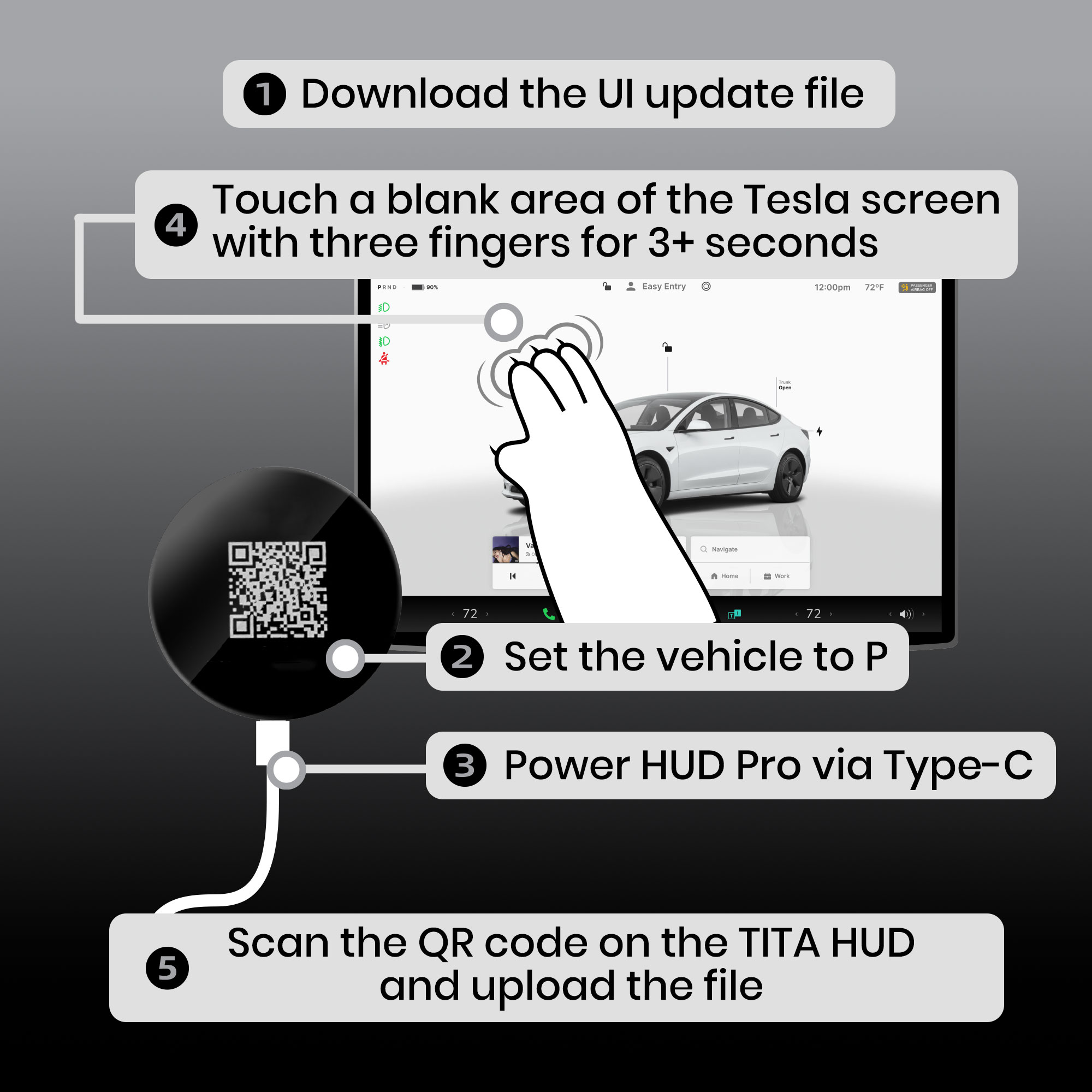
Step 4-1: HUD Pro Display OTA Update
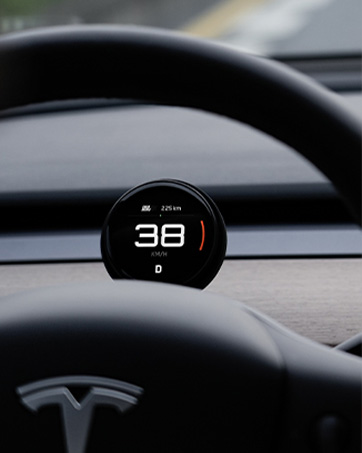
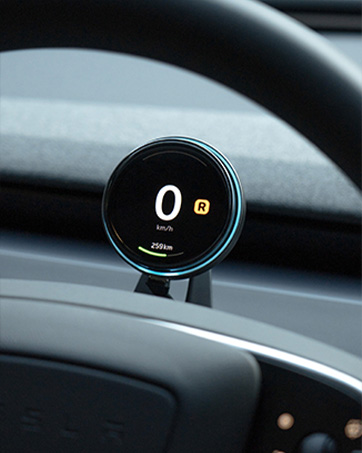
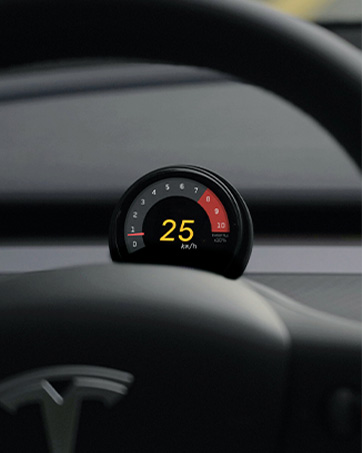
Step 1: Choose any UI version below.
Step 2: Keep the tesla in P.
Step 3: Power the screen via Type-C.
Step 4: Touch the Tesla screen with three fingers for 3+ seconds.
Step 5: Scan the TITA QR code to start the OTA update.
first_image_ratio = 100
Step 4-2: Transmitter OTA Update
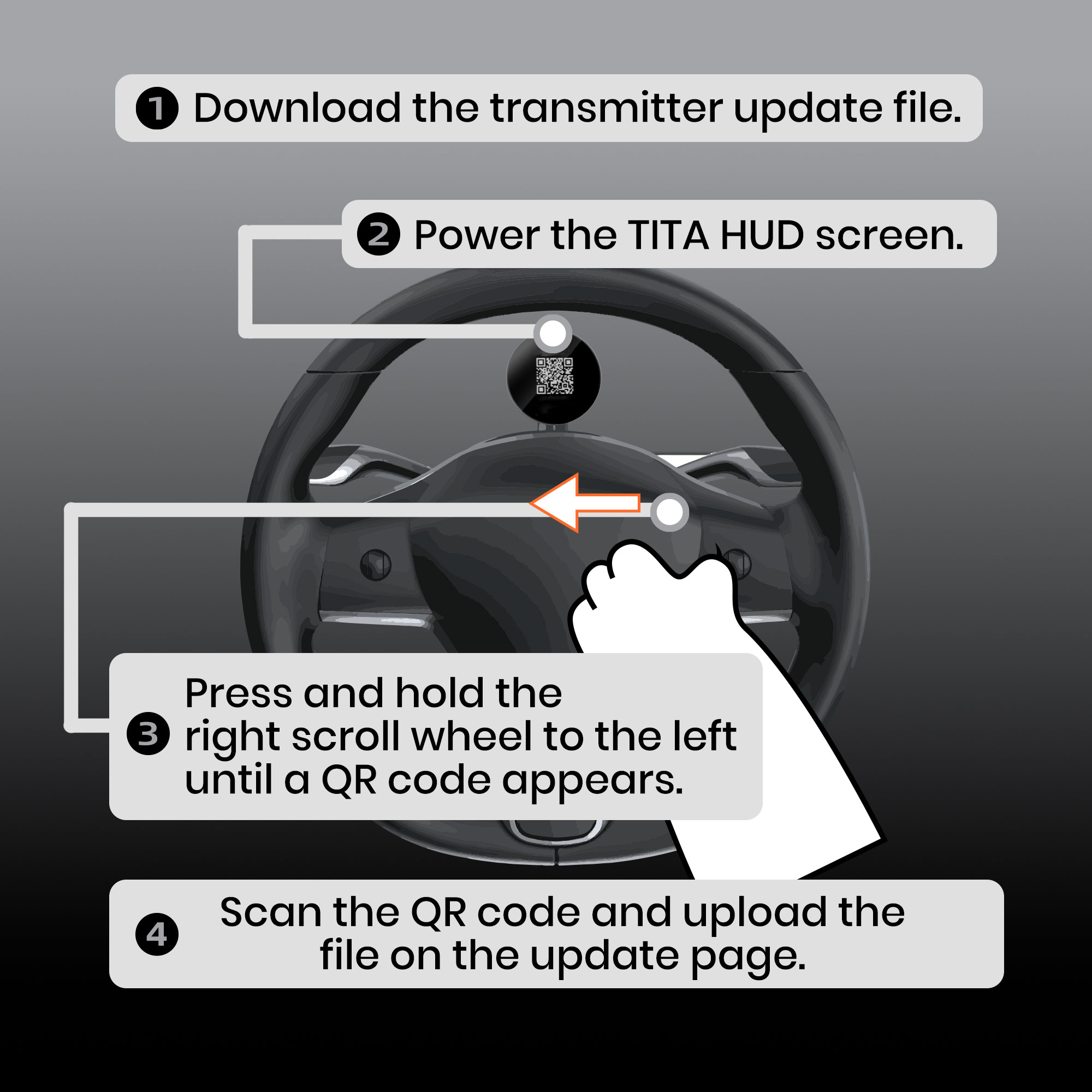
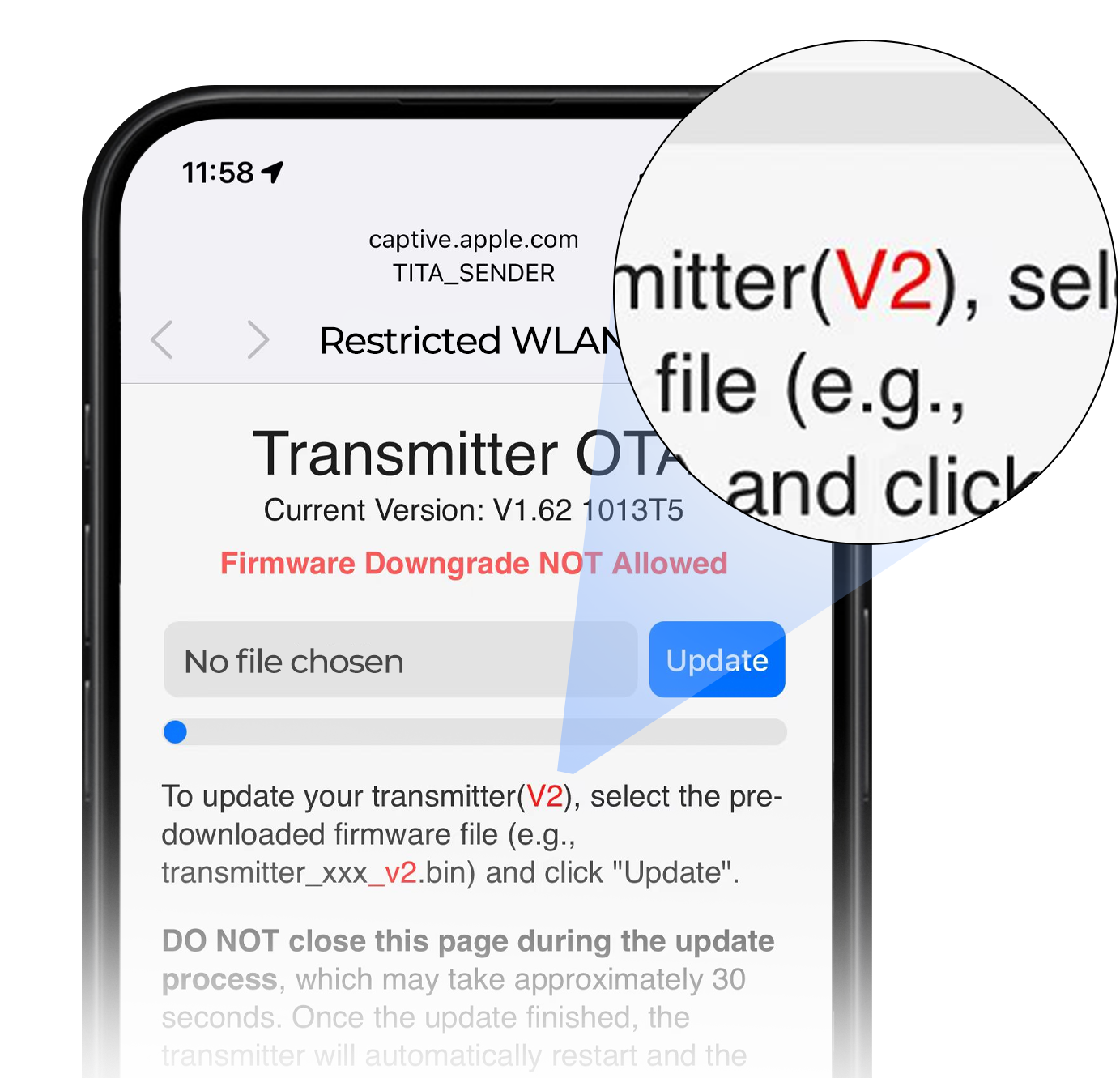
Step 1: Download the transmitter update file.
Step 2: Power the TITA HUD screen.
Step 3: Press and hold the right scroll wheel to the left until a QR code appears.
Step 4: Scan the QR code and upload the file on the update page.
Step 5: Customize Your HUD Pro
Switch UI
Download UI File → Park the Vehicle → Follow the OTA Update Steps Above
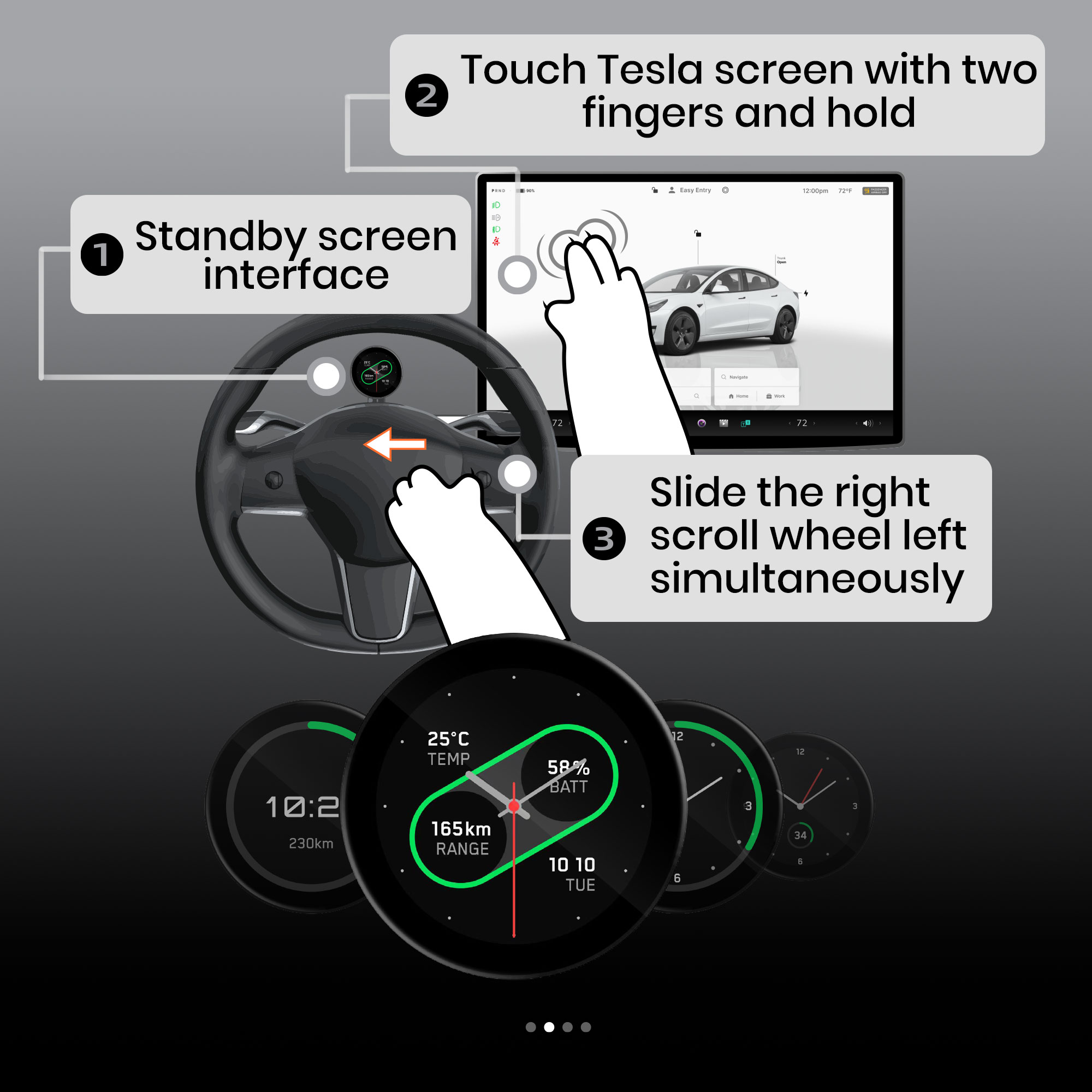
Change Standby Display
Two Fingers on Screen → Move Right Scroll Wheel Left
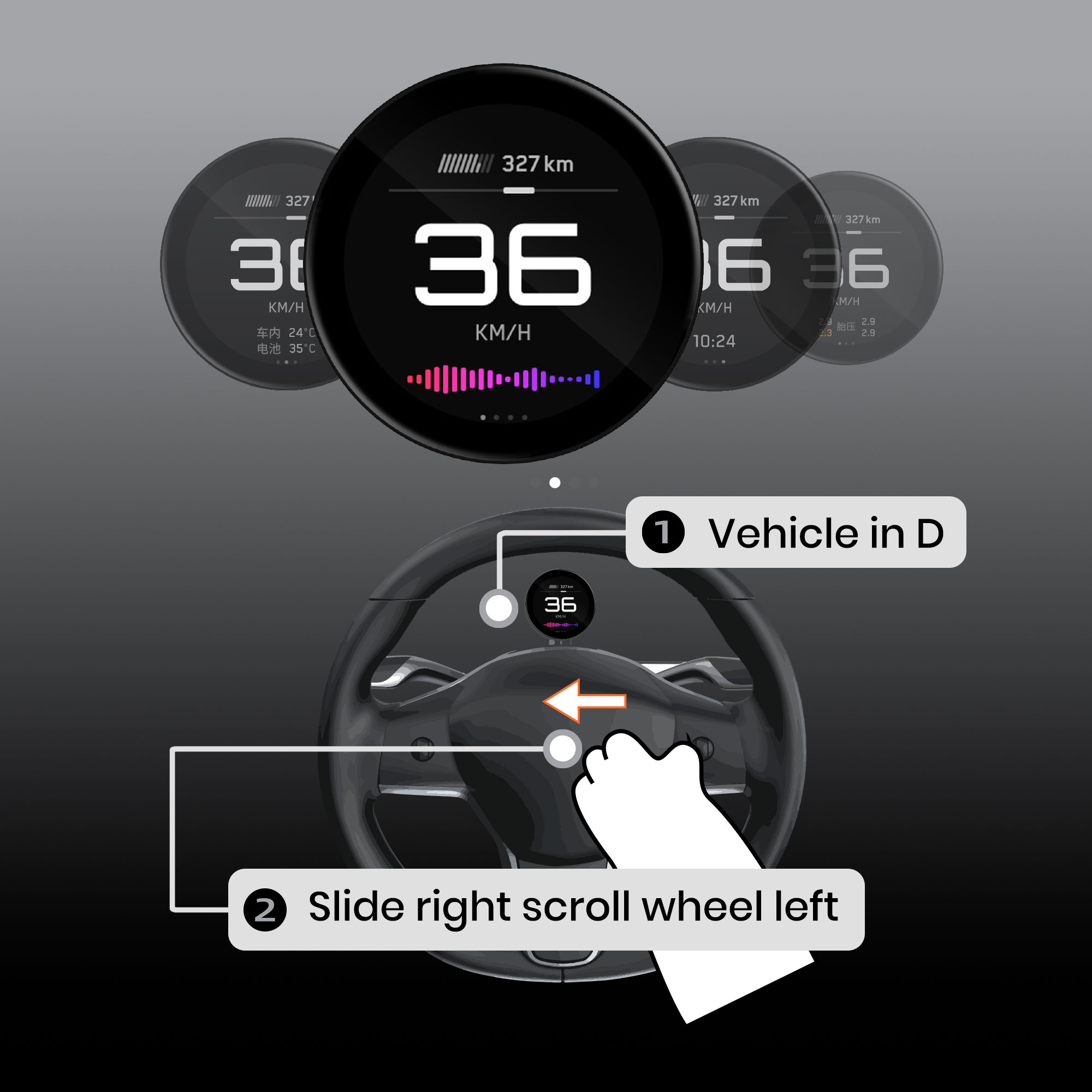
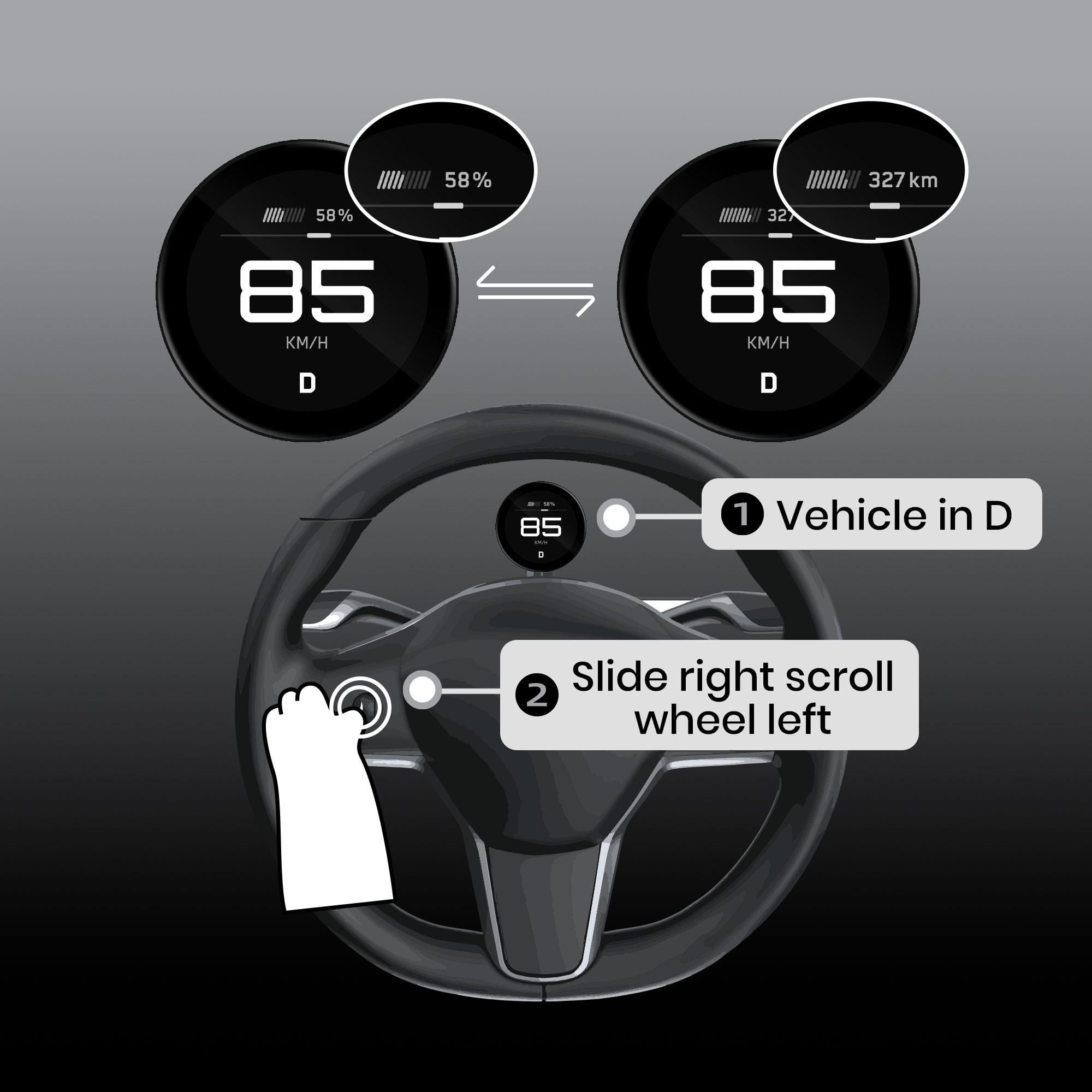
Switch Screen Mini Cards
Shift to D Gear → Slide Right Scroll Wheel Left
Switch Battery / Range Display
Shift to D Gear → Double-Click the Left Scroll Wheel
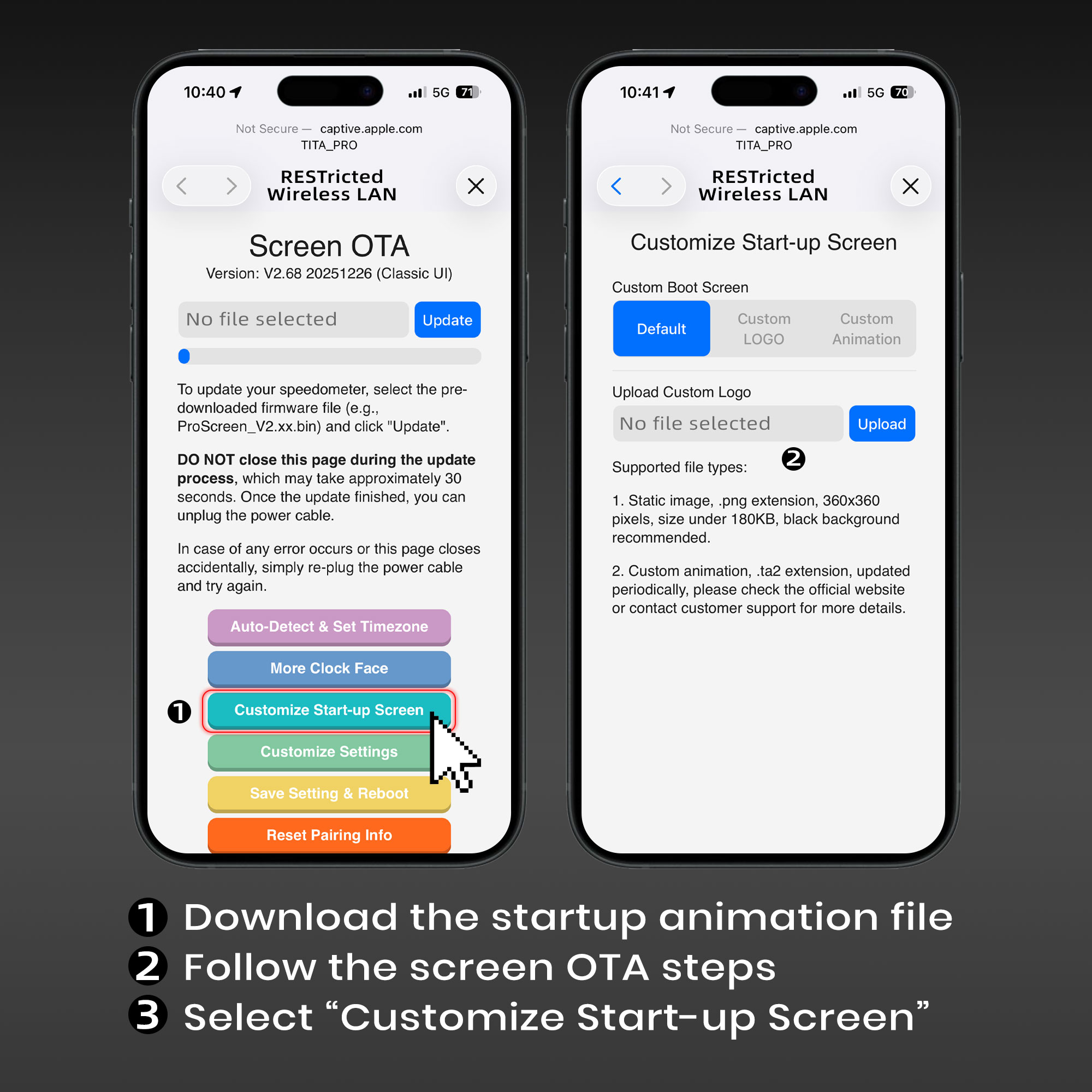
Set Startup Animation
Download Startup Animation File → Follow Screen OTA Steps
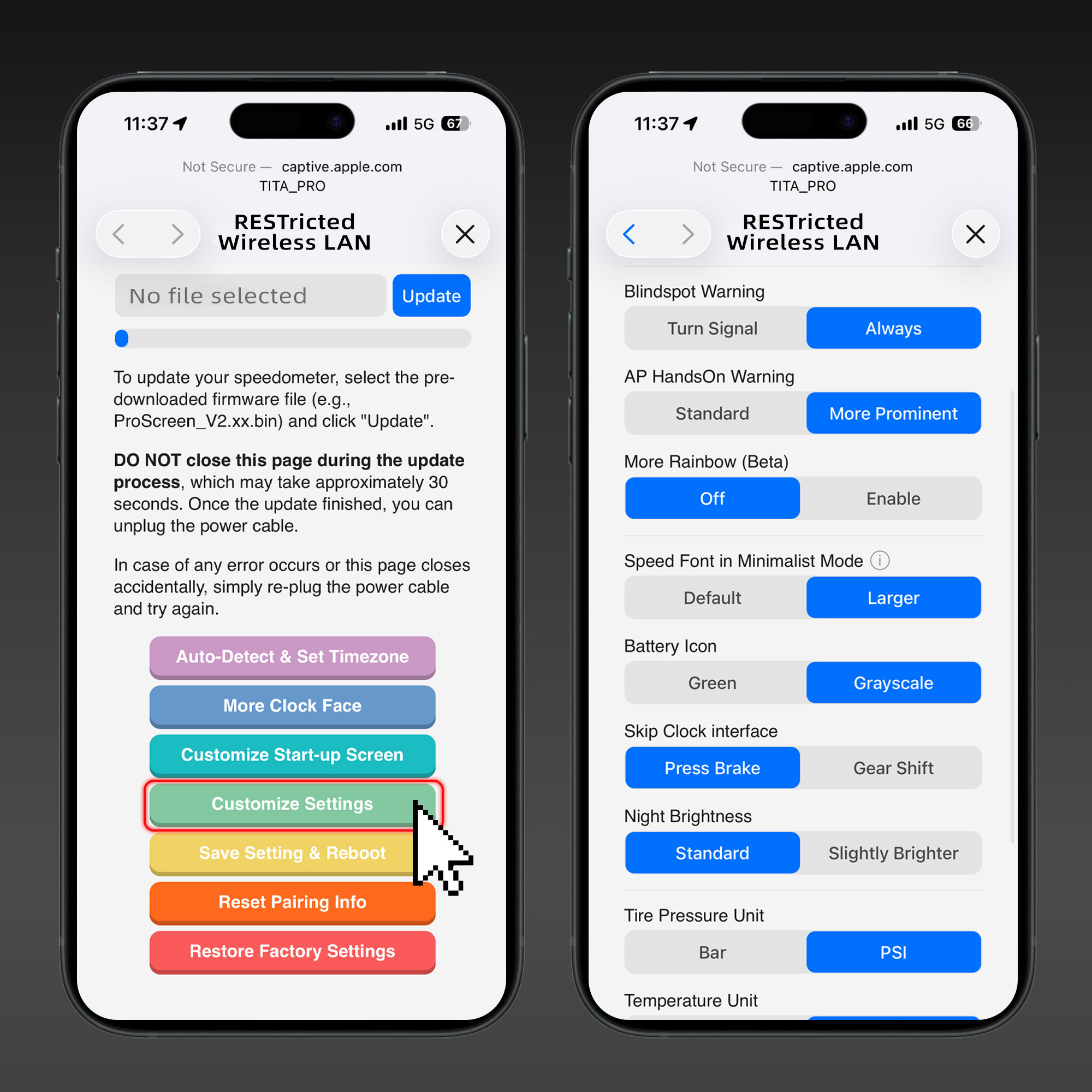
Customize Some Information
Enter Screen OTA Page → Customize Display Settings
Switch UI
Download UI File → Park the Vehicle → Follow the OTA Update Steps Above
Change Standby Display
Two Fingers on Screen → Move Right Scroll Wheel Left
Switch Screen Mini Cards
Shift to D Gear → Slide Right Scroll Wheel Left
Switch Battery / Range Display
Shift to D Gear → Double-Click the Left Scroll Wheel
Set Startup Animation
Download Startup Animation File → Follow Screen OTA Steps
Customize Some Information
Enter Screen OTA Page → Customize Display Settings
1
/
6


Frequently Asked Questions
About TITA HUD
Will the TITA transmitter affect my Tesla warranty or service?
The TITA transmitter uses a one-way, read-only connection. It does not send control commands or modify your vehicle’s original systems. Warranty coverage is ultimately determined by Tesla and applicable local laws.
Do I need professional installation?
No. The installation is straightforward and can usually be completed at home. If you run into any issues, feel free to contact us for assistance.
Does TITA provide ongoing OTA updates?
Yes. TITA provides monthly OTA updates for the HUD Pro and HUD Ultra and transmitter.
Which apps are compatible with TITA?
TITA currently works with Dashla. We are also exploring compatibility with additional apps and developing our own app.
Can I continue using other similar accessories with the TITA transmitter installed?
Yes. The TITA transmitter includes a spare OBD port for compatible accessories. Connect the TITA transmitter first, then connect the other device through the spare port.
Contact TITA
TITA Support
Email: support@hellotita.com
Whatsapp:+1 (213) 343-2678
Create Tesla Ecosystem with TITA
Share your ideas for Tesla accessories or TITA. We build a better Tesla accessory ecosystem together!